
How to Fix Docker Disk Space Issues Caused by Log Files
July 1, 2025
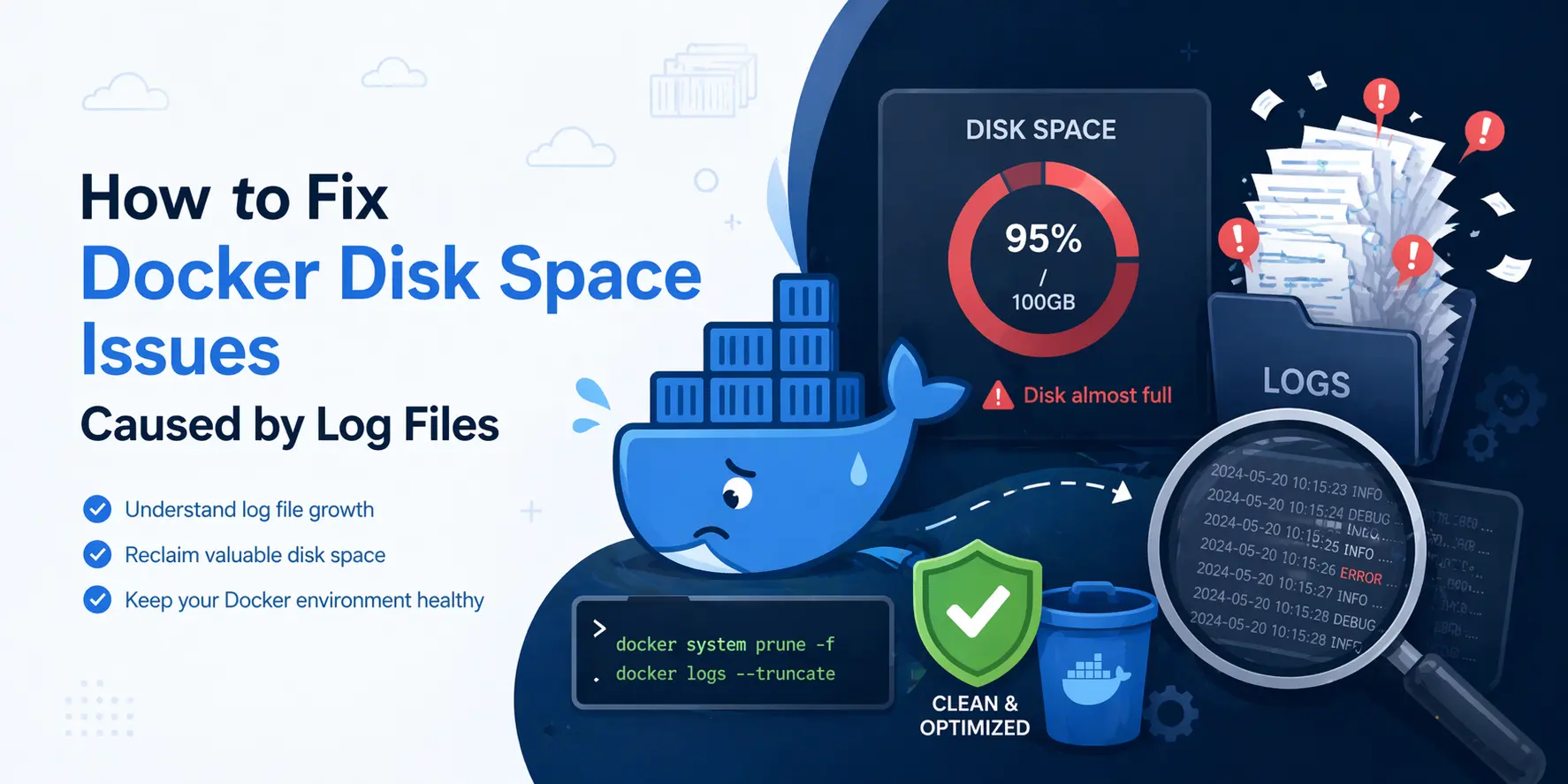
If your server's disk is unexpectedly filling up and you use Docker, the culprit might be something you’d never expect: container log files. In this blog, we’ll walk through how to identify the problem, fix it immediately, and prevent it from happening again.
Scenario: Docker Eating Up Disk Space
You might notice your /var/lib/docker directory is using up dozens of gigabytes, even if your containers and images aren't that large.
Example:
Output:
This tells us that containers, not images or volumes, are consuming most of the disk space.
Step 1: Find the Large Log Files
Most of this space is taken by Docker container logs, stored as *-json.log files inside each container's directory.
Run:
Typical output:
Step 2: Clean Up the Log Files (Safe and Instant)
To quickly truncate a specific large log:
To truncate all logs in one go:
This instantly frees up disk space without restarting Docker or affecting running containers.
Step 3: Enable Docker Log Rotation (Permanent Fix)
To stop this from happening again, set up log rotation using Docker’s native options.
Add or edit /etc/docker/daemon.json:
max-size: maximum size of each log file (10 MB)max-file: how many rotated log files to keep (3 files)
This limits each container to a total of 30 MB of logs, which is usually more than enough.
Restart Docker:
Verify:
Bonus: Find the Noisiest Container
If you’re curious which container created those huge logs, run:
Then tail the log to inspect it:
You’ll probably find overly verbose logs or application errors.
Summary
| Task | Command |
|---|---|
| Check Docker disk usage | du -h /var/lib/docker --max-depth=1 |
| Find largest logs | find /var/lib/docker/containers -name "*.log" |
| Truncate all logs | find ... -exec truncate -s 0 {} \; |
| Enable log rotation | Edit /etc/docker/daemon.json |
| Restart Docker | systemctl restart docker |
Final Tip
This fix works across Ubuntu, Debian, CentOS, Fedora, RHEL, and more — it’s a standard Docker feature, not OS-specific.